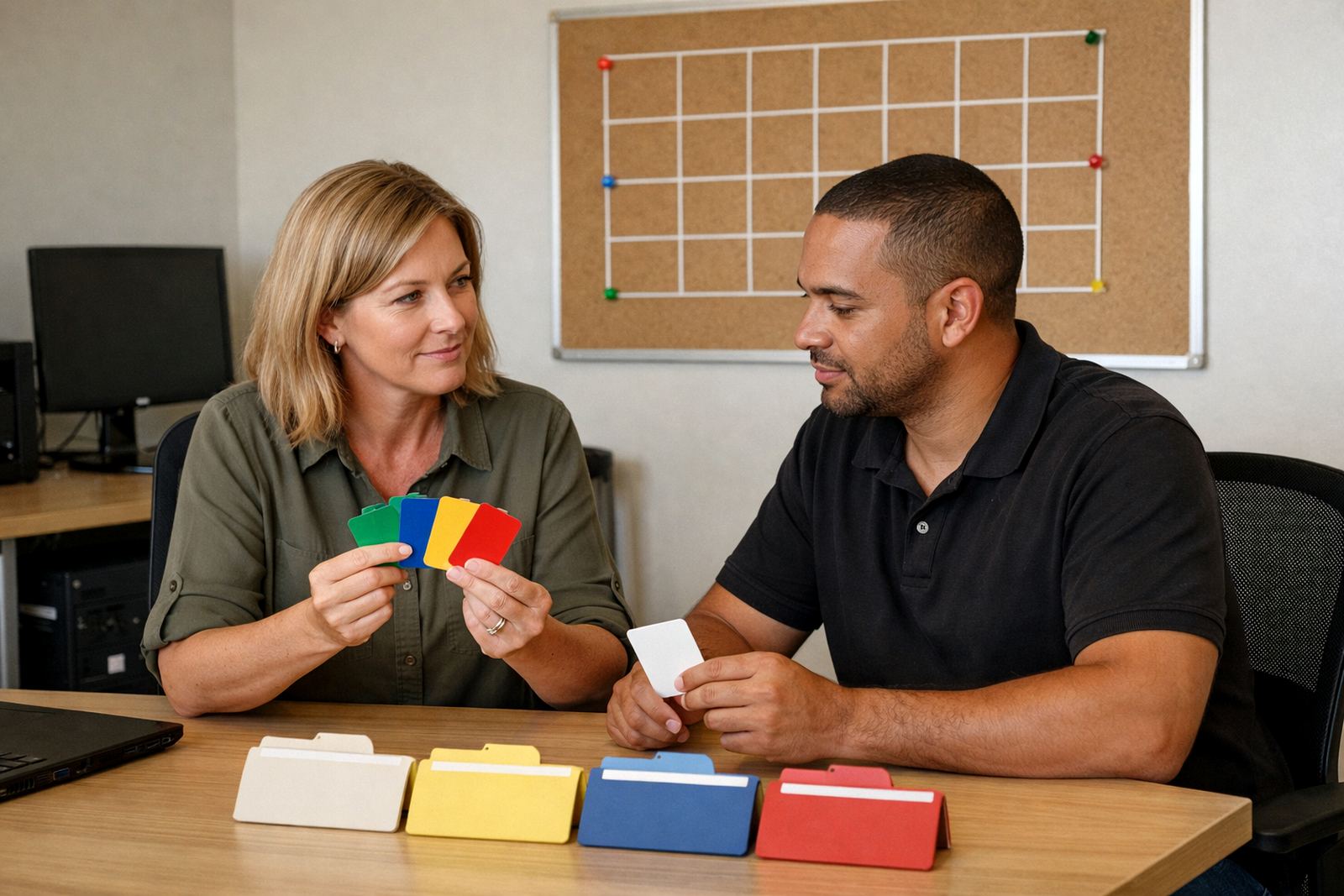


Start With One Clear Folder Structure
Set naming rules before the first file goes in. File names should tell someone what the document is, which project it belongs to and which version they should use. A clear naming system is especially helpful when several people edit the same document or when files are reviewed after load-shedding interruptions and work is picked up later.
A practical format is: category-project-date-version. For example, a training note could be named Training-YouthProject-2026-03-Initial. Keep dates in a consistent order, such as year-month-day, so files sort properly. Avoid vague names like final, new, or updated because those quickly become confusing.
- Use the same date format in every folder.
- Keep version labels simple, such as v1, v2 or final.
- Do not use special characters that may cause issues on different devices.
- Agree on one naming rule and apply it across all branches.
Match Access Rights To Real Roles
Not everyone needs edit access to every folder. A good shared document setup gives people the access they need for their job and nothing more. That protects sensitive information such as payroll, donor records and board papers, while still letting teams collaborate on day-to-day work.
Think in roles. A programme coordinator may need to edit project files, but only view finance reports. A board member may only need access to governance documents. Review permissions whenever someone joins, changes role or leaves. This matters in non-profit organisations where volunteers, contractors and staff may all use the same document space.
- Give edit access only to the people who update the content.
- Use view-only access for reports, policies and completed records.
- Remove access promptly when roles change.
- Check permissions at least once a quarter.
Build A Simple System For Shared Working Files
Shared documents work best when everyone knows where working files belong and where the final version lives. Keep a separate area for draft documents, active collaboration and approved records. This prevents old versions from being used in meetings, donor submissions or compliance filing.
For example, a project proposal can start in a drafts folder, move to a review folder for comments, then be saved in a final folder once approved. If your team supports several offices, this approach keeps the same process in place whether the document is prepared in Observatory, Bellville or Pretoria. It also makes handovers easier when staff are away or travelling between sites.
- Separate draft, review and final files.
- Keep completed records out of working folders.
- Use one owner for each shared folder.
- Archive old files instead of leaving them in active spaces.
Set Up Shared Calendars And Related Files Together
Document spaces are easier to use when they connect with calendars and meeting materials. If a committee meeting is on the calendar, the agenda, minutes, attendance register and follow-up tasks should sit in one obvious place. That saves time and cuts down on duplicate copies across inboxes and personal devices.
This is also useful for teams managing donor events, training sessions or field visits. Keep one folder for each recurring meeting or programme and store the supporting documents there. A small bit of planning here makes it far easier to prepare reports later and track what was agreed.
- Create a folder for each recurring meeting or programme.
- Store agendas, minutes and action notes together.
- Use calendar entries to link people to the right file set.
- Keep one shared version of meeting documents, not many copies.
Plan For Mobile Access And Low-Data Use
Many staff members open documents on phones or tablets, especially when they are travelling between branches or working away from the office. Make sure the folder structure is easy to read on a small screen and that important files are not buried several clicks deep. Simple names and short paths matter even more when people are working with limited data or unstable connectivity.
If your team often deals with load-shedding or patchy internet, encourage them to open and save files in a way that reduces confusion later. Keep the most used templates in one place, and avoid storing the same file in multiple folders. That way, if someone edits offline and syncs later, there is less chance of version mix-ups.
- Keep frequently used files in one easy-to-find folder.
- Use file names that are clear on mobile screens.
- Avoid duplicate copies in personal folders.
- Test access on both phone and computer.
Review, Archive And Train So The System Stays Tidy
A good structure only stays useful if someone checks it regularly. Set a monthly or quarterly review to remove duplicate files, archive closed projects and fix folders that have drifted off course. When staff change, include the document structure in handover notes so the next person does not recreate the system from scratch.
Training should be short and practical. Show new team members where to save documents, how to name files and who approves changes. A two-page guide can prevent weeks of confusion. If everyone follows the same habits, the shared document space stays clean, searchable and easy to manage across the whole organisation.
- Review folder use every month or quarter.
- Archive closed projects and completed records.
- Include document rules in every handover.
- Train new staff and volunteers before they start editing.