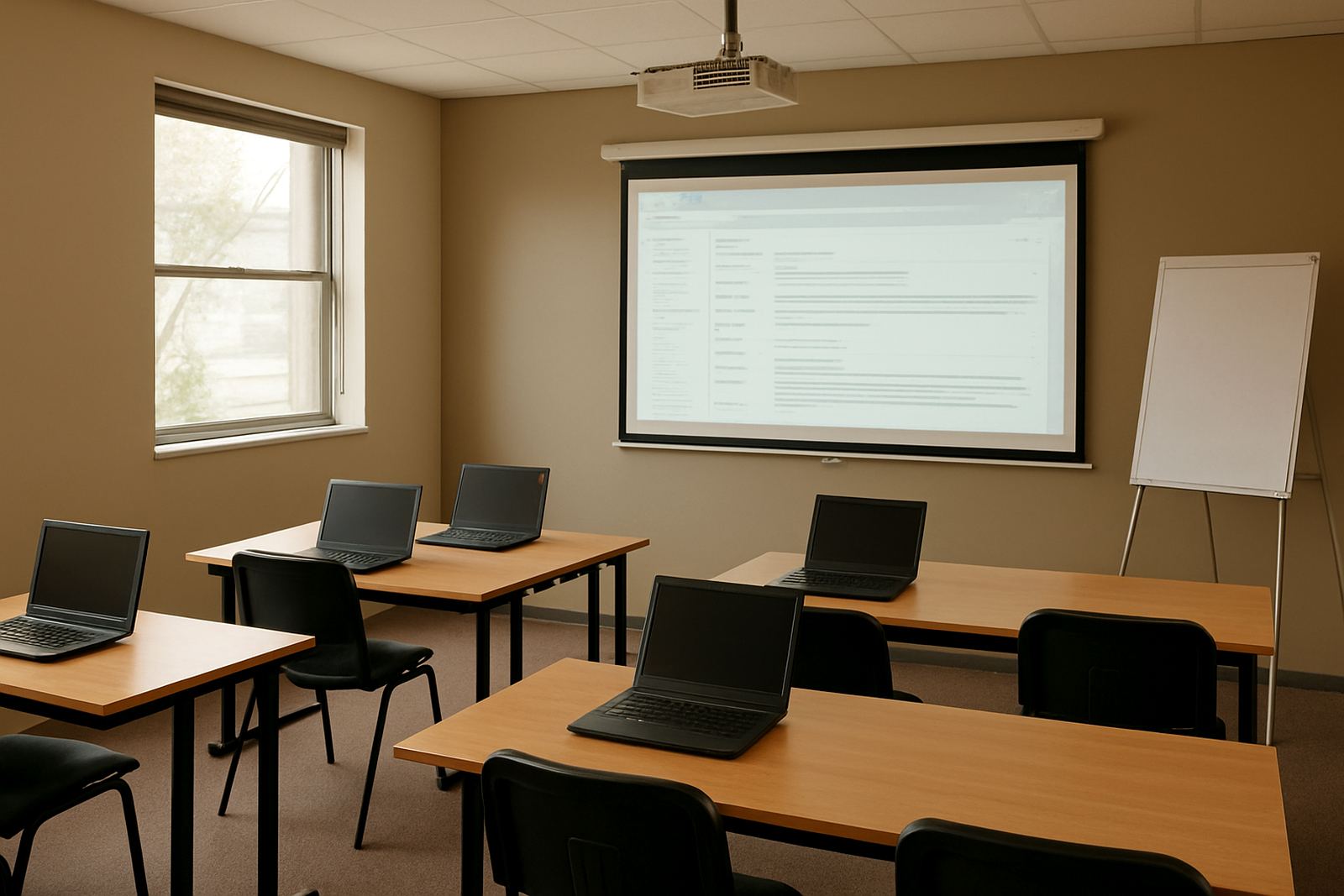

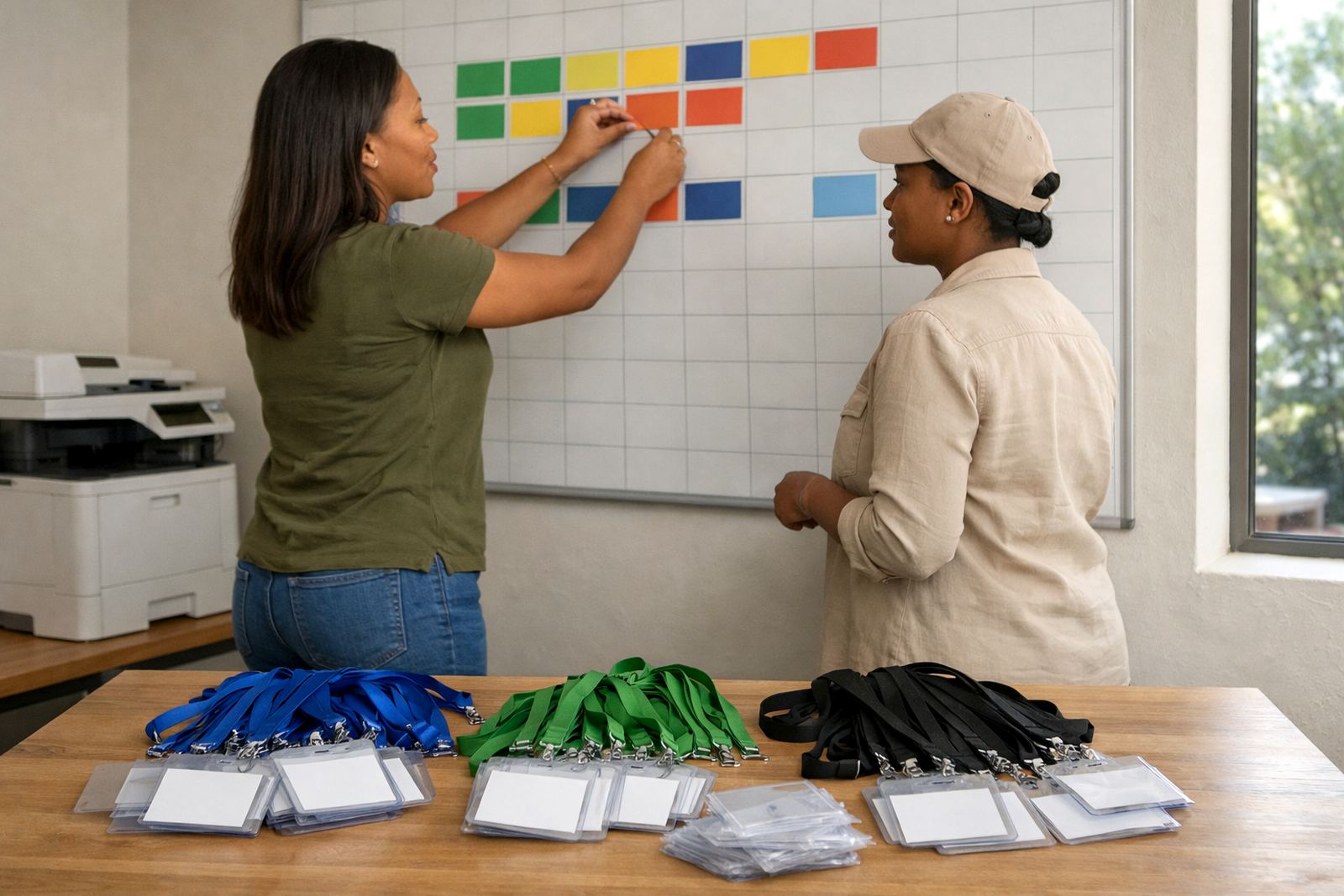
Built for regular programmes and busy volunteer teams
This package is set up for non-profit organisations that run weekly training, monthly fundraisers, school visits or field outreach. Instead of each person keeping notes in different places, your team uses shared calendars and a single mail platform to keep dates, venues and task owners in line.
It suits small office teams and larger groups with volunteers coming in and out, because permissions can be handled by role. A coordinator can manage the main calendar while other staff view, comment or add events as needed, which helps when you are balancing programme work and admin on the same day.
- Shared event planning for staff and volunteers
- Custom email addresses for committee members and project leads
- Document access for agendas, attendance sheets and notices
- Works well for towns and cities with mixed office and field teams
What is included in the pack
The pack covers the core tools a charity needs to plan, confirm and store event information in one system. You get mailbox setup, calendar setup and document space setup, along with domain linking and contact imports where required.
For organisations moving from personal mail accounts or paper diaries, migration can be handled in stages so your records are kept in order. We also assist with mobile device setup, admin handover and team training, which is useful for staff working across Durban, Pretoria, Bloemfontein and coastal branches where connectivity or power interruptions can affect timing.
- Mailbox Setup for staff and project addresses
- Calendar Setup for shared planning and meeting dates
- Document Space Setup for files, forms and event packs
- Mail Migration and Contact Imports for existing records
Sizes and options for different organisation needs
The Event Calendar Pack can be scaled to match the size of your organisation. A small charity may only need a few shared calendars for programmes, fundraising and admin. Larger groups may need separate calendars for branches, outreach teams and training sessions, with each team having its own viewing rights.
Typical options include single-office use, multi-branch use and project-based setups. If your organisation works from Observatory and also supports sites in Bellville, Stellenbosch or further afield, it helps to split calendars by programme so dates do not clash. That keeps the work tidy and avoids confusion when staff are travelling between venues.
- Starter option for small teams with basic scheduling needs
- Branch option for organisations with multiple local offices
- Programme option for charities running several event streams
- Admin access options for managers, coordinators and support staff
Installation, access and practical power needs
Setup is done around your existing domain and user structure, so the switch is straightforward for most offices. During installation we help link the domain, create the mailboxes, set up the shared calendars and confirm who can edit, view or manage each space.
There is no special power or gas requirement for the service itself, but your team will need reliable internet access and working devices. In South Africa that matters during load-shedding, so a battery backup, UPS or mobile data plan can help staff keep checking calendars and sending notices when the office power is off. If you have a meeting room projector or shared screens, make sure those devices are also covered by backup power where needed.
- Internet connection required for mail and calendar access
- Can be used on phones, tablets and office computers
- No gas connection needed
- Backup power is recommended for offices affected by outages
Care, servicing and day to day admin
Once the pack is live, the main care task is keeping users and permissions up to date. When a volunteer leaves or a new project officer joins, their access should be changed quickly so calendars stay secure and event files remain in the right hands.
We also recommend a simple admin routine: check shared folders monthly, review calendar permissions before busy campaign periods and keep contact lists current. If your organisation hosts many events in coastal areas, use staff training to remind teams about sync delays on weaker signal and to save copies of key documents before travel. Ongoing admin help is available when your internal person is away or overloaded, which happens more than people expect.
- Review user access after staff changes
- Keep event files and notices in named folders
- Check mobile sync on each phone after setup
- Refresh training before large campaigns or annual events
What to check before you order
Before placing an order, confirm how many users need mailboxes, who must share calendars and whether you need document collaboration for board papers, funding reports or volunteer packs. It also helps to know whether you need one central calendar or several by branch, since that affects the structure of the setup.
Have your current domain details ready, plus a list of staff names, roles and any existing contact lists you want moved across. If your organisation has a small office in Observatory and support staff in Johannesburg or Durban, send the locations and the names of the people who should manage each area. That way the setup can match real working patterns and not just a generic filing system.
- Number of users and shared mailboxes needed
- Calendar structure by project, branch or team
- Devices used for access, including phones and tablets
- Existing contacts, files and mail that need migration
Key facts
| Product type | Shared message, calendar and document collaboration package |
|---|---|
| Best for | Non-profit organisations running regular workshops, outreach drives and public events |
| User scale | Small teams through to multi-branch groups |
| Core features | Domain linking, mailbox setup, calendar sharing, document space, migration support |
| Access | Benchtop, laptop, tablet and mobile device access |
| Support | Setup, training, go live support and ongoing admin help from Observatory, Cape Town |